Showing posts with label ODE. Show all posts

Sunday, November 8, 2015

ODE brief tutorial

Very quick top level understanding of the key components in ODE...
An object in ODE is made of two entities:
  1. The body: holds the masses (one in the centre of gravity or distributed...). This is what gives the kinetic behaviour to the object.
  2. The geometries used to describe the physical boundaries of the object (detect collisions).
Bodies belong to the World, while geometries belong to the Space.

To create the objects, we create their bodies (which can actually be made of bodies). Each body is basically a mass, with a centre and an orientation (which later will be tight to the same centre and orientation of the geometry). Then we create geometries that we assign to that body so that it's all linked together. Setting a body on a geom automatically combines the position vector and rotation matrix of the body and geom, so that setting the position or orientation of one will set the value for both objects. This is important because even if we have created the geometry somewhere else, once we assign it to the body, the centre of the geometry will be shifted to match the centre of the body. To offset that, use dGeomSetOffsetPosition.

Program starts (in main C function) by creating the simulation environment with its objects and the fn function among others (see below). Then calls dsSimulationLoop (argc,argv,352,288,&fn); that starts the simulation. It will stay there, simulating, till exiting (usually ctrl+x).

fn, among other things, basically points to the 2 key functions on a simulation loop, Step (key ODE step sim) and Command which senses inputs from keyboard, for instance.

A simulation loop (Step) [1] runs dSpaceCollide in the space to detects collisions and position the objects according to that. [2] Then runs a step of physics simulation with dWorldStep which moves the object accordingly. [3] Finally draws the whole scene. Notice that you can draw whatever you want, even nothing, and may not match what/where the real geoms are. It is up to the user to keep what we see and what the sim uses to do collisions correct. For that, when drawing the objects, use their centers and orientations. Outside Step, after all that is done, [4] software checks for user inputs in Command.

Cheers!

PS.: Some of the tutorials included with ODE (I'll add as I go through them):
  1. Chain 2: uses ball and socket joints to connect a series of boxes to make it look like a chain. No user input. Simple and quite insightful.
  2. dBall: double ball and socket demonstration. Shows two objects tight by a rope under the wind.
  3. cylvssphere: just drops a sphere and a cylinder in screen. Pretty simple.
  4. feedback: that's a cool one... draws a bridge out of tiles and then drops a bunch of stuff on it that ends-up breaking it...
  5. gyro2: the boxes spinning in space, using dBodySetGyroscopicMode. Not sure what for...
  6. joints: that is a pretty spectacular/psychodelic one. Many different type of joints applied between two boxes... Sim seems to re-start between each type.

Saturday, November 15, 2014

ODE Installation in Linux Mint

So, I got my new Linux (Mint) box up and going to install ODE (open dynamics engine/physics library). Here are the steps for my future reference (ODE manual here). Boy, this certainly wasn't straightforward for me...:
  1. Download code from SourceForge
  2. Uncompress within the Eclipse workspace. Yeah, not sure if best place but...
  3. Make sure you have installed a compiler like g++. For that you can do which g++. If not sudo apt-get install g++
  4. Make sure you have glut installed (these are the OpenGL libraries needed for the drawstuff part, and it took me a while to find till I got across this good one). Just execute
    sudo apt-get install freeglut3 freeglut3-dbg freeglut3-dev (.h/includes get installed in /user/include/GL, .so/.a/libraries get installed in /usr/lib/x86_64-linux-gnu/). More on OpenGL directories here.
  5. Follow the install from tarball instructions... Basically run ./configure --enable-double-precision to generate the make files. At the end of the run there should be a line that says "configuration:" and a list of things installed. You should see "Use drawstuff: X11" there too. Basically I think configure creates the right makefiles.
  6. make will make the make files
  7. sudo make install After this one can see in /usr/local/lib the ode libraries libode.a and libode.al. Also in /usr/local/include/ode a bunch of .h files.
  8. Nevertheless drawstuff is MIA. Again, following the instructions here we need to cp those files: 
    1. sudo mkdir -p /usr/local/include/drawstuff
    2. sudo cp include/drawstuff/version.h /usr/local/include/drawstuff
    3. sudo cp include/drawstuff/drawstuff.h /usr/local/include/drawstuff
    4. sudo cp drawstuff/src/libdrawstuff.la /usr/local/lib
    5. sudo cp drawstuff/src/.libs/libdrawstuff.a /usr/local/lib
  9. Run the eclipse. If for the first time use this command: ./eclipse -initialize
  10. Create a c++ project
  11. Copy the demo file .cpp from ode/demo directory into the workspace project directory and do refresh in Eclipse (I used the demo_buggy demo).
  12. Add at the beginning of the .cpp file the following includes (they may not be there because the example may have not been targeting Linux):
    • #define dDOUBLE
    • #include <X11/Xlib.h>
    • #include <GL/glut.h>
    • #include <ode/ode.h>
    • #include <drawstuff/drawstuff.h>
    • #include "texturepath.h"
  13. Add the following paths (in Eclipse, right click on the project --> Properties --> C/C++ General --> Paths and Symbols):
    1. In the Includes tab/GNU C++: add /usr/local/include (the ode and drawstuff includes are in there). FYI, /usr/include has most of the others, including X11 and GLUT (OpenGL).
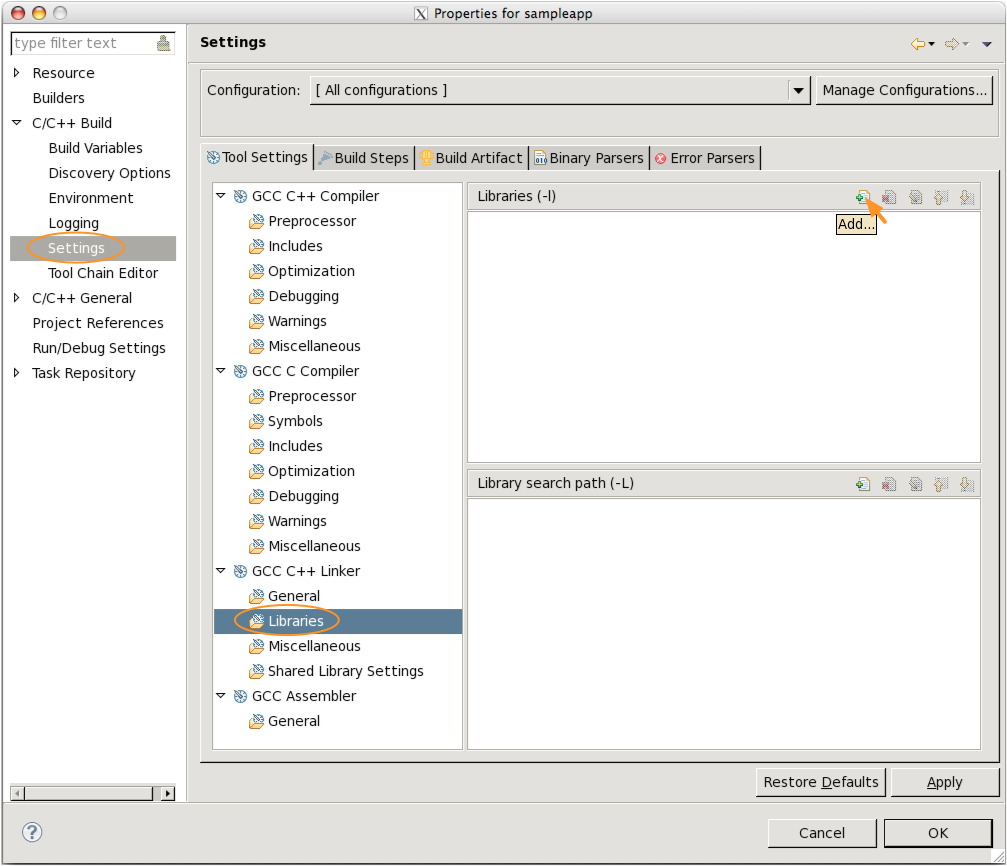
    2. On the "Properties" page, click "C/C++ Build→Settings". Under the "Tool Settings" tab, click "GCC C++ Linker→Libraries" (Fig. 10)
    3. On the "Libraries (-l)" pane click the add file () button (Fig. 11)
    4. On the popup dialog box type "GL" and click "OK"
    5. Repeat the above two steps to add "GLU" and "glut" libraries
    6. Add also X11. Notice that all these libraries are actually called libxxx with the xxx whatever. For instance, libX11.a, not X11.a. But we, nevertheless, list them without the "lib" portion. See here.
    7. And just when I thought I was done, I still needed to add this one: pthread. I was getting this error: "Description Resource Path Location Type /usr/local/lib/libode.a(atomic.o): undefined reference to symbol 'pthread_mutexattr_init@@GLIBC_2.2.5' demo_buggy C/C++ Problem"
    8. In the Library Paths add:
      1. /usr/local/lib contains libdrawstuff.a and libode.a
      2. /usr/lib/x86_64-linux-gnu/ containing libGL and libGLU
      3. A "funny" thing is that I was trying to find where libX11.a is, but it shows in the /proc directory (/proc/3921/cwd). Proc contains virtual directories/files. They are created at run time. In this case, 3921 is the process for the bash. So, somehow, we don't need to add any path for libX11.a
    9. Clicked run and still had one silly message saying that "a program file was not specified in the launch configuration". Fixed with this. And GOOOO!!!!
Seems that we are set to PLAY NOW! :D

Other references:
  1. Some good advice to run ODE in Linux
  2. Hiro Aki blog
  3. 3D graphics tutorials:
    1. http://www.arcsynthesis.org/gltut/
    2. http://www.tomdalling.com/blog/category/modern-opengl/
    3. http://www.codeincodeblock.com/2013/07/modern-opengl-32-tutorial-series-with.html 
  4. Don't think this has to do with Mint or ODE, but in Eclipse, after I copy the project (ctrl+C, ctrl+V, rename the cpp) the whole file is marked with red warnings/errors. It is solved by going to properties --> C/C++ General --> Indexer and then mark Enable project specific settings, Enable indexer, Use active build configuration.