[In my previous post I went through the use of QAudioDevice, but didn't show real time generation of audio. This post will not offer a solution to this either. Discusses the topic and leaves it where I left it, in case I want to re-take it. It will be a bit of rambling, sorry, but still, if you are on this topic and have not found the answer anywhere else, may point you in the right direction. If you have found a good example of this, please add a comment... Thanks!
Note: ha, like if anybody was ever going to read this :) ]
We are trying to have an audio system that has almost no latency, i.e, that a user can't notice it. This is important, for instance, in the case of games, where a player would see an explosion and should listen it right at the same time. On our example before, we had an audio buffer of about 1.5s (131072 bytes
--> 65k samples --> ~1.5s at 44100samples/s audio). That meant
that whenever we add something to that buffer, we will hear it a while
later... Not good.
A thought was to reduce the length of that
buffer, but if we simply were doing that we were getting some weird
noises, maybe due to buffer overrun (?). We found documentation where
they did mention that the buffer could be 10ms, but again, it did not
work when we tried straight forward.
Using simply the
audio play/stop may be fast, but still, the buffer has whatever
it has, so, the latency from whenever the audio data is generated to the
time is played would not change.
We also have the question on how signals work... Say we have a signal to
service the timer updating the audio and one to service the audio
generation itself, like creating the audio for an explosion. How do we service both on the right order? Something tells me this is done automatically on some kind of even queue.
But actually I am thinking that there may be several
events happening at the same time, like two explosions, one after
another, but with the first being long enough that is not finished by
the time the next one comes... How do we deal with it? Several audio
channels? Or mix first the audio and then output? Probably the second.
As we are talking about games, here is a good summary of the base framework in Qt:
http://boards.openpandora.org/index.php?/topic/108-qt-4x-as-a-game-engine/
Wish I had more time to play. Look at the demos!
Some people talks about using SDL which their authors describe as:
"Simple DirectMedia Layer is a cross-platform multimedia library designed
to provide low level access to audio, keyboard, mouse, joystick, 3D
hardware via OpenGL, and 2D video framebuffer. It is used by MPEG
playback software, emulators, and many popular games, including the
award winning Linux port of "Civilization: Call To Power."
http://www.libsdl.org/
http://www.libsdl.org/intro.en/usingsound.htmlhttp://www.libsdl.org/projects/SDL_mixer/
On the same topic of real time audio, there is a good post here:
http://lists.trolltech.com/qt-interest/1997-10/thread00245-0.html
Scroll down all the way, to read it. Basically it is saying that
"The conclusion is that you need to decouple the audio task from Qts
event processing at all.
I`ve done this by creating two threads: one that reads audio data from a
mp3 decoder and a second one that copies the data to /dev/dsp. Both
threads simply block on read/write and communicate through a simple
buffer queue.
Calls into Qt from concurrent threads seems to be a bad idea as Qt is
not thread safe by itself. That is: no signal/slot communication from
within the threads, no interactions with the framework at all ;-)"
====
On a separate topic, on our previous post, we left unanswered what push vs pull mode were:
http://stackoverflow.com/questions/3426868/play-audio-data-using-qiodevice-qt4-6-with-vc
Explains it pretty well, showing that we indeed were using push. Notice that we used the setNotifyInterval at 50ms (we checked this by reading it too). That, at 44100 samples/s would mean every 4410 bytes, but this number does not really show up anywhere. It is not, certainly the periodSize, which is larger than this. So, notify happens more often but we do not get to see it. We plot every write call, but emptyBytes is at least periodSize long, not 4410?!?
One important thing I left out is that we are assuming that all what we write is written, but that is not truth. If the buffer is full, it wouldn't. Nevertheless, I think it is working because we are checking a priori how many bytes are empty.
Cheers!
PS.: If I ever figure it out may want to go reply other folks with the same doubt, like http://qt-project.org/forums/viewthread/20391
Showing posts with label Qt. Show all posts
Showing posts with label Qt. Show all posts
Sunday, October 28, 2012

Friday, October 26, 2012
Qt audio output
This post is about generating audio in Qt with raw data. If you want to send a wav file straight to speaker, you can get done that very easily and there are plenty of places where they explain that... It is basically all about QAudioOutput. There is a full example of this here:
http://doc.qt.digia.com/4.7-snapshot/multimedia-audiooutput.html
Nevertheless, the example tries to cover all the cases, which makes hard to sort through what you really need. The simpler example that I finally followed was this:
http://www.qtforum.org/article/36606/solved-qaudiooutput-truncated-sinusoid-sound.html
After chewing on this, I created a different example (see below). The code works, but I am not an expert at all, my interpretation may be wrong and I am short in time to use any kind of error handling, close memory properly, etc... so, take it with a grain of salt :). Comments are very welcome :). The other thing is that the code does not solve the "real time" aspect of things... For instance, an explosion going off in a game and listening to it right then. I'll have to work on this...
1. The object representing the physical device:
You will need an object for the audio device itself, representing the physical element on the machine. That is the QAudioOutput object. The information of that device will be under a QAudioDeviceInfo object. If you go with the default, you don't even need to see what that info is (QAudioDeviceInfo::defaultOutputDevice).
This object has an internal buffer, which size is set by setbuffersize. You got to give it a number and I found out that the bigger the better was working. I think that had to do with overrun (see below).
2. The object to interface/pass data to the physical object in #1
To pass the data to that device, you need to connect the physical object to a QIODevice object. You do that by using QIODevice = QAudioOutput->start();
3. Getting the data to that "interface" object
Once you connected your interface object to the physical one, all what you need is to keep feeding data to the QIODevice. You do so using "write" (QIODevice::write). Every time you write there, it just appends that data to whatever you had written before. QAudioOutput reads from that buffer automatically (we don't see it).
The key is then to keep feeding data. Don't let the buffer empty and don't put too much/overrun the buffer (remember the size you set with setbuffersize). That is explained here:
http://lists.qt.nokia.com/pipermail/qt-interest/2010-June/024858.html
Basically, we don't know when exactly the audio is going to play it (I guess when the CPU or DMA or whatever gets to it...), but we don't care, we just need to make sure that there is always data to be played and to not exceed the buffer depth. I guess that there are several strategies here, but one can ask the device object to give us a notification every certain time. No timer needed, just use audioOutput->setNotifyInterval(50); where the 50 means 50ms (lot's of people use that). So, every 50ms, a signal will be generated and then we just connect that to a slot, to check if more data is needed and feed it if so:
QObject::connect(QAudioOutput, SIGNAL(notify()), this, SLOT(writeMoreData()));
So, every 50ms there will be a call to writeMoreData. What you do in there is up to you, but basically that's where you do the QIODevice::write to fill the buffer up. Just remember that you need to keep feeding "coherent" audio, so, you'll have to keep track on where you are in the audio you are sending. For instance, if a tone, you need to make sure that every time you come back to the writeMoreData, you feel the natural continuation of where you left it before.
But how do you know how many bytes you have empty in the audio buffer? Just use QAudioOutput::bytesFree.
There is one more thing... It is recommended that you write into the QIODevice in "chunks" of periodSize, which can be obtained with: QAudioOtuput::periodSize().
A final remark. Notice that your data may be, for instance, 16bits/sample (you set that when you create the QAudioOutput object, by passing a format), but a lot of the info returned by these functions is counted in bytes. So, take that into account...
Example
With that in mind, let's have a look to my code, which generates every second a tone of 4KHz during 100ms (no audio between tones).
My_Widget.h:
My_Widget.cpp:
And the main.cpp:
This is what would be displayed in my case:
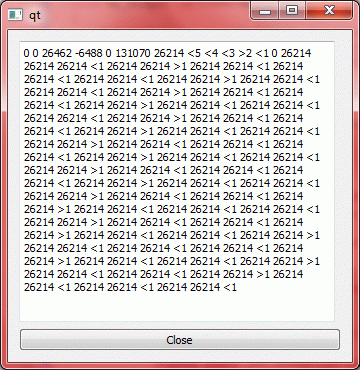
The first 5 numbers are the value in the circular buffer, just to make sure that things are what they need to be (blank, sine, blank).
"<" indicates that the chunk sent was before the end of buffer (wrap)
">" indicates that the chunk came part from before and part after the wrap.
The first number after < or > indicates the chunk number sent. Chunks are groups of periodSize long data. As we said, audio "likes" this.
The 2nd number shows the number of empty BYTES in the audio buffer when audio call the notification.
The 3rd number is telling us the periodsize, the number of BYTES. Do not confuse that with any kind of period in our buffer, ie., it is not the period of the sine we are sending or the wrapping period,
but just an internal number of the device audio buffer. We can see here is always constant at 26214.
So, now we can interpret the numbers. Initially (after the first five numbers) . One can see that we got 131070 BYTES free in the buffer. Notice that is almost what we set here: audioOutput->setBufferSize(131072);
As every audio sample is 2 bytes, that is 65535 audio samples long. We send a chunk of 26214 (13107 samples) from the beginning of our circular buffer (aubuffer, which is 44100 samples long), decrease counter to 4 and do that again. For 5 times.
Notice that as our circular buffer is 44100 long, we can do 3 reads of 13107 length before hitting the end of the buffer. I.e., 3 "<" hits and then one wrapping around the buffer, ie., ">". Then one more
from close to the beginning ("<") and the audio buffer will be full. Readpointer will be at 21435. (*)
Notice that in the first notification after that, the emptyBytes was zero (while period size was still 26214). But on the next notification (50ms) later, it seems to be the same as the periodSize. And it'll be like that from there on, with notifications coming fast enough that there is only one chunk per notification.
To continue with the analysis after where we left it at (*), one more read "<" and we are at 34532. Next one will hit the end of the buffer again, so, it'll be ">". And so on...
CHEERS!!!
PS1.: There is one more thing, called push vs pull mode, which refers, from the audio device perspective, how the data is obtained. I believe the above is "push" mode. Basically, we check how the buffer is doing and then write on it. The "checking" is triggered by the audio notify, but that is just like a timer, which I think is what the official Qt example shows (QTimer). Anyhow, I'll try to make a post on this as there is still some stuff I don't fully understand.
PS2.: By the way, to insert the code in blogger, I used the instructions here:
http://codeformatter.blogspot.com/
Also, I found this, but I didn't use it:
http://www.craftyfella.com/2010/01/syntax-highlighting-with-blogger-engine.html
http://doc.qt.digia.com/4.7-snapshot/multimedia-audiooutput.html
Nevertheless, the example tries to cover all the cases, which makes hard to sort through what you really need. The simpler example that I finally followed was this:
http://www.qtforum.org/article/36606/solved-qaudiooutput-truncated-sinusoid-sound.html
After chewing on this, I created a different example (see below). The code works, but I am not an expert at all, my interpretation may be wrong and I am short in time to use any kind of error handling, close memory properly, etc... so, take it with a grain of salt :). Comments are very welcome :). The other thing is that the code does not solve the "real time" aspect of things... For instance, an explosion going off in a game and listening to it right then. I'll have to work on this...
1. The object representing the physical device:
You will need an object for the audio device itself, representing the physical element on the machine. That is the QAudioOutput object. The information of that device will be under a QAudioDeviceInfo object. If you go with the default, you don't even need to see what that info is (QAudioDeviceInfo::defaultOutputDevice).
This object has an internal buffer, which size is set by setbuffersize. You got to give it a number and I found out that the bigger the better was working. I think that had to do with overrun (see below).
2. The object to interface/pass data to the physical object in #1
To pass the data to that device, you need to connect the physical object to a QIODevice object. You do that by using QIODevice = QAudioOutput->start();
3. Getting the data to that "interface" object
Once you connected your interface object to the physical one, all what you need is to keep feeding data to the QIODevice. You do so using "write" (QIODevice::write). Every time you write there, it just appends that data to whatever you had written before. QAudioOutput reads from that buffer automatically (we don't see it).
The key is then to keep feeding data. Don't let the buffer empty and don't put too much/overrun the buffer (remember the size you set with setbuffersize). That is explained here:
http://lists.qt.nokia.com/pipermail/qt-interest/2010-June/024858.html
Basically, we don't know when exactly the audio is going to play it (I guess when the CPU or DMA or whatever gets to it...), but we don't care, we just need to make sure that there is always data to be played and to not exceed the buffer depth. I guess that there are several strategies here, but one can ask the device object to give us a notification every certain time. No timer needed, just use audioOutput->setNotifyInterval(50); where the 50 means 50ms (lot's of people use that). So, every 50ms, a signal will be generated and then we just connect that to a slot, to check if more data is needed and feed it if so:
QObject::connect(QAudioOutput, SIGNAL(notify()), this, SLOT(writeMoreData()));
So, every 50ms there will be a call to writeMoreData. What you do in there is up to you, but basically that's where you do the QIODevice::write to fill the buffer up. Just remember that you need to keep feeding "coherent" audio, so, you'll have to keep track on where you are in the audio you are sending. For instance, if a tone, you need to make sure that every time you come back to the writeMoreData, you feel the natural continuation of where you left it before.
But how do you know how many bytes you have empty in the audio buffer? Just use QAudioOutput::bytesFree.
There is one more thing... It is recommended that you write into the QIODevice in "chunks" of periodSize, which can be obtained with: QAudioOtuput::periodSize().
A final remark. Notice that your data may be, for instance, 16bits/sample (you set that when you create the QAudioOutput object, by passing a format), but a lot of the info returned by these functions is counted in bytes. So, take that into account...
Example
With that in mind, let's have a look to my code, which generates every second a tone of 4KHz during 100ms (no audio between tones).
My_Widget.h:
 /*
  * My_Widget.h
  *
  * Created on: Oct 7, 2012
  *   Author: a0214929 / Eduardo Bartolome
  */
 /*
  * audioOutput is the physical object. It gets the data
  * from the auIObuffer automatically, once they are connected.
  * But we need to refill the auIObuffer from outside.
  * In this case, as we may have async audio pieces (created
  * from the game event, like key presses, explosions...)
  * we have a big circular buffer (aubuffer) that stores
  * those as they get in, and it's read out by the auIObuffer
  * when a notify comes.
  *
  * The aubuffer is an array of 44100 2 byte elements *
  */
 #ifndef MY_WIDGET_H_
 #define MY_WIDGET_H_
  #include <QtCore/QObject>
  #include <QtGui>
  #include <QObject>
  #include <QIODevice>
  #include <QAudioOutput>
 const float DurationSeconds = 0.1;
 const int ToneFrequencyHz = 4000;
 const int DataFrequencyHz = 44100;
 const int BufferSize   = 44100; // Size of aubuffer, 1s long
 class My_Widget:public QWidget
 {
      Q_OBJECT
 public:
      My_Widget( QWidget * parent = 0,Qt::WindowFlags f = 0):QWidget(parent,f)
      {
           initializeWindow();
           initializeAudio();
           writeMoreData();
      }
      ~My_Widget()
      {
           delete audioOutput;
      }
 public slots:
      void writeMoreData();
 private:
      void initializeWindow();      // This creates the GUI
   void initializeAudio();
      // For the GUI
      QTextEdit string_display;
      QPushButton quitButton;
      QGridLayout layout;
      // For the audio
      QAudioDeviceInfo deviceinfo;     // The information on the audio device
      QAudioOutput*  audioOutput;      // Object that takes the data from the IO device
                                              // when needed and sends to audio device.
      QAudioFormat   format;
      QIODevice*            auIObuffer;     // IODevice to connect to m_AudioOutput
      signed short   aubuffer[BufferSize];     // Audio circular buffer
      int                      readpointer;           // Pointer to the portion of the audio buffer
                                                   // to be read.
      int                      writepointer;           // Pointer to the portion of the audio buffer
                                                // to be written.
 };
 #endif /* MY_WIDGET_H_ */
My_Widget.cpp:
 /*
  * My_Widget.cpp
  *
  * Created on: Oct 7, 2012
  *   Author: a0214929
  */
 #include "My_Widget.h"
 #include <qmath.h>
 #include <qEndian.h>
 void My_Widget::initializeWindow()
      {
        string_display.setReadOnly(true); // Displays all what user typed
           string_display.setAcceptRichText(true);
           quitButton.setText("Close");
           // The order of creation sets the order of focus with tab
           layout.addWidget(&string_display,0,0);
           layout.addWidget(&quitButton,1,0,1,2);
           this->setLayout(&layout);
           this->setFocus(); // This has to be after creation.
                                // AND without this, the tab and space
                    // keys will just move focus within the widget
           QObject::connect(&quitButton, SIGNAL(clicked()), qApp, SLOT(quit()));
      }
 void My_Widget::initializeAudio()
 {
   deviceinfo=QAudioDeviceInfo::defaultOutputDevice(); // Device info = default
   audioOutput=0;
   // qthelp://com.trolltech.qt.482/qdoc/qaudioformat.html
   format.setFrequency(DataFrequencyHz);
   format.setChannels(1);          // The number of audio channels (typically one for mono
                                            // or two for stereo)
   format.setSampleSize(16);      // How much data is stored in each sample (per channel)
                                             // (typically 8 or 16 bits)
   format.setCodec("audio/pcm");
   format.setByteOrder(QAudioFormat::LittleEndian);
   format.setSampleType(QAudioFormat::SignedInt);
   // Constructor of QAudioDeviceInfo that gets the one from the default device
   QAudioDeviceInfo info(QAudioDeviceInfo::defaultOutputDevice());
   if (!info.isFormatSupported(format)) {
     qWarning() << "Default format not supported - trying to use nearest";
     format = info.nearestFormat(format);
   }
   audioOutput = new QAudioOutput(deviceinfo, format, this);
      audioOutput->setNotifyInterval(50);
      audioOutput->setBufferSize(131072); //in bytes
   QObject::connect(audioOutput, SIGNAL(notify()), this, SLOT(writeMoreData()));
   //auIObuffer->open(QIODevice::ReadOnly);
      auIObuffer = audioOutput->start();
   // We will delete this later, but for the moment we store a 0.1s tone on the aubuffer
   // As the buffer is 1 second long, the buffer tone will be played periodically every 1s,
   // after the buffer wraps around.
   for (int sample=0; sample<BufferSize; sample++) {
        signed short value=0;
        if ((sample>20000) && (sample<20000+(DurationSeconds*DataFrequencyHz))){
          float time = (float) sample/DataFrequencyHz ;
          float x = qSin(2 * M_PI *ToneFrequencyHz* time);
          value = static_cast<signed short>(x * 32767);
        }
        aubuffer[sample] = value;
   }
   string_display.insertPlainText(QString::number(aubuffer[1]));
   string_display.insertPlainText(" ");
   string_display.insertPlainText(QString::number(aubuffer[20000]));
   string_display.insertPlainText(" ");
   string_display.insertPlainText(QString::number(aubuffer[20001]));
   string_display.insertPlainText(" ");
   string_display.insertPlainText(QString::number(aubuffer[24409]));
   string_display.insertPlainText(" ");
   string_display.insertPlainText(QString::number(aubuffer[40000]));
   string_display.insertPlainText(" ");
   writepointer=0;
   readpointer=0;
 }
 // When the audio calls for this routine, we are not sure how much do we need to write in.
 // We need to make sure that what we send is n-sync with what is in the buffer already...
 void My_Widget::writeMoreData()
 {
      int emptyBytes = audioOutput->bytesFree(); // Check how many empty bytes are in the device buffer
      int periodSize = audioOutput->periodSize(); // Check the ideal chunk size, in bytes
      string_display.insertPlainText(QString::number(emptyBytes));
      string_display.insertPlainText(" ");
      string_display.insertPlainText(QString::number(periodSize));
      string_display.insertPlainText(" ");
      int chunks = emptyBytes/periodSize;
      while (chunks){
           if (readpointer+periodSize/2<=BufferSize)
           // The data we need does not wrap the buffer
           {
                auIObuffer->write((const char*) &aubuffer[readpointer], periodSize);
                readpointer+=periodSize/2;
                if (readpointer>BufferSize-1) readpointer=0;
                string_display.insertPlainText("<");
                }
           else
           // Part of the data is before and part after the buffer wrapping
           {
                signed short int_buffer[periodSize/2];
                // We want to make a single write of periodSize but
                // data is broken in two pieces...
                for (int sample=0;sample<BufferSize-readpointer;sample++)
                     int_buffer[sample]=aubuffer[readpointer+sample];
                     for (int sample=0;sample<readpointer+periodSize/2-BufferSize;sample++)
                          int_buffer[BufferSize-readpointer+sample]=aubuffer[sample];
                          auIObuffer->write((const char*) &int_buffer, periodSize);
                          readpointer+=periodSize/2-BufferSize;
                          string_display.insertPlainText(">");
                     }
           string_display.insertPlainText(QString::number(chunks));
           string_display.insertPlainText(" ");
           --chunks;
      }
 }
And the main.cpp:
 #include <QtGui>
 #include "My_Widget.h"
 int main(int argc, char *argv[])
 {
      QApplication a(argc, argv);
      My_Widget window;
   window.show();
        return a.exec();
 }
This is what would be displayed in my case:
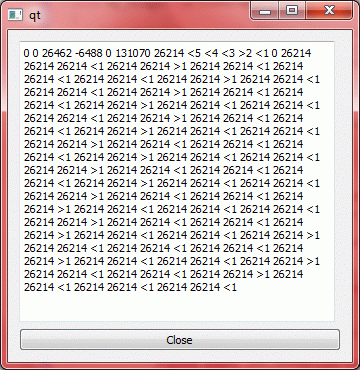
The first 5 numbers are the value in the circular buffer, just to make sure that things are what they need to be (blank, sine, blank).
"<" indicates that the chunk sent was before the end of buffer (wrap)
">" indicates that the chunk came part from before and part after the wrap.
The first number after < or > indicates the chunk number sent. Chunks are groups of periodSize long data. As we said, audio "likes" this.
The 2nd number shows the number of empty BYTES in the audio buffer when audio call the notification.
The 3rd number is telling us the periodsize, the number of BYTES. Do not confuse that with any kind of period in our buffer, ie., it is not the period of the sine we are sending or the wrapping period,
but just an internal number of the device audio buffer. We can see here is always constant at 26214.
So, now we can interpret the numbers. Initially (after the first five numbers) . One can see that we got 131070 BYTES free in the buffer. Notice that is almost what we set here: audioOutput->setBufferSize(131072);
As every audio sample is 2 bytes, that is 65535 audio samples long. We send a chunk of 26214 (13107 samples) from the beginning of our circular buffer (aubuffer, which is 44100 samples long), decrease counter to 4 and do that again. For 5 times.
Notice that as our circular buffer is 44100 long, we can do 3 reads of 13107 length before hitting the end of the buffer. I.e., 3 "<" hits and then one wrapping around the buffer, ie., ">". Then one more
from close to the beginning ("<") and the audio buffer will be full. Readpointer will be at 21435. (*)
Notice that in the first notification after that, the emptyBytes was zero (while period size was still 26214). But on the next notification (50ms) later, it seems to be the same as the periodSize. And it'll be like that from there on, with notifications coming fast enough that there is only one chunk per notification.
To continue with the analysis after where we left it at (*), one more read "<" and we are at 34532. Next one will hit the end of the buffer again, so, it'll be ">". And so on...
CHEERS!!!
PS1.: There is one more thing, called push vs pull mode, which refers, from the audio device perspective, how the data is obtained. I believe the above is "push" mode. Basically, we check how the buffer is doing and then write on it. The "checking" is triggered by the audio notify, but that is just like a timer, which I think is what the official Qt example shows (QTimer). Anyhow, I'll try to make a post on this as there is still some stuff I don't fully understand.
PS2.: By the way, to insert the code in blogger, I used the instructions here:
http://codeformatter.blogspot.com/
Also, I found this, but I didn't use it:
http://www.craftyfella.com/2010/01/syntax-highlighting-with-blogger-engine.html
Tuesday, August 21, 2012
Using QT with Eclipse - Hello world
I had found couple of articles on this, but they were not a fit and much more complicated than it really is (so, don't follow them if you are in my situation - Windows/Eclipse). The first looks like it was for Linux:
http://koehllab.genomecenter.ucdavis.edu/documentation/how-to/how-to-use-eclipse-with-qt/
The second was for the Qt Creator environment (full Qt SDK installation, not like me, with Eclipse):
http://qt-project.org/doc/qt-4.8/gettingstartedqt.html
Truth is that things are actually very straightforward. If you create a project following the Wizard, you'll get a Qt hello_world window without typing a line of code. The 2nd link is useful to understand how things are actually working (open the different pieces of code and compare them to see what the wizard did for you automatically). Also, trying to use a C++ project straight from Qt and add the libraries manually is probably a big pain, based on this post:
http://stackoverflow.com/questions/7775398/eclipse-qt-and-c-project-is-it-possible
Anyhow, so, how to do it? Basically, once Qt/Eclipse is installed (see my previous post on that) you should see on the top right of Eclipse a perspective for Qt:

Selecting the Qt C++ perspective and then File --> New we see:

If you don't press/select Qt C++, and you click in File --> New, you should at least see "Project..." option:

And clicking it, you should get the option to create a Qt project.
Either way, you can then just pick Qt Gui Project and follow the steps:
After that, simply click the run (green "play" arrow) and the following window will show up (see note 1):

I selected MinGW gdb, click ok and wait for the application window to show up. Should be immediate. In this case:

That should be it! If you want to quickly play around, check the Project Explorer View, on the left of Eclipse.

If you double click in qt_another_test.ui you can see the shape of the window of your application. Clicking in the Qt C++ Widget Box tap, besides the Project Explorer view, you can add buttons, slide bars, etc... Click on the .cpp, .pro or .h to see the code. Now you can begin to make sense of the explanations on the tutorial listed above...
http://qt-project.org/doc/qt-4.8/gettingstartedqt.html
Good luck!
(1) If a message box shows up saying: "The selection can not be launched or there are not recent launches" right click on the project and select "Clean Project"
http://koehllab.genomecenter.ucdavis.edu/documentation/how-to/how-to-use-eclipse-with-qt/
The second was for the Qt Creator environment (full Qt SDK installation, not like me, with Eclipse):
http://qt-project.org/doc/qt-4.8/gettingstartedqt.html
Truth is that things are actually very straightforward. If you create a project following the Wizard, you'll get a Qt hello_world window without typing a line of code. The 2nd link is useful to understand how things are actually working (open the different pieces of code and compare them to see what the wizard did for you automatically). Also, trying to use a C++ project straight from Qt and add the libraries manually is probably a big pain, based on this post:
http://stackoverflow.com/questions/7775398/eclipse-qt-and-c-project-is-it-possible
Anyhow, so, how to do it? Basically, once Qt/Eclipse is installed (see my previous post on that) you should see on the top right of Eclipse a perspective for Qt:
Selecting the Qt C++ perspective and then File --> New we see:
If you don't press/select Qt C++, and you click in File --> New, you should at least see "Project..." option:
And clicking it, you should get the option to create a Qt project.
Either way, you can then just pick Qt Gui Project and follow the steps:
- The project name can have spaces in there.
- On the next dialog, try either one (QWidget, QMainWindow, ...).
- No need to select any additional Qt modules (Core and Gui are enough)
- Click finish
After that, simply click the run (green "play" arrow) and the following window will show up (see note 1):

I selected MinGW gdb, click ok and wait for the application window to show up. Should be immediate. In this case:
That should be it! If you want to quickly play around, check the Project Explorer View, on the left of Eclipse.
If you double click in qt_another_test.ui you can see the shape of the window of your application. Clicking in the Qt C++ Widget Box tap, besides the Project Explorer view, you can add buttons, slide bars, etc... Click on the .cpp, .pro or .h to see the code. Now you can begin to make sense of the explanations on the tutorial listed above...
http://qt-project.org/doc/qt-4.8/gettingstartedqt.html
Good luck!
(1) If a message box shows up saying: "The selection can not be launched or there are not recent launches" right click on the project and select "Clean Project"
Subscribe to:
Posts (Atom)